



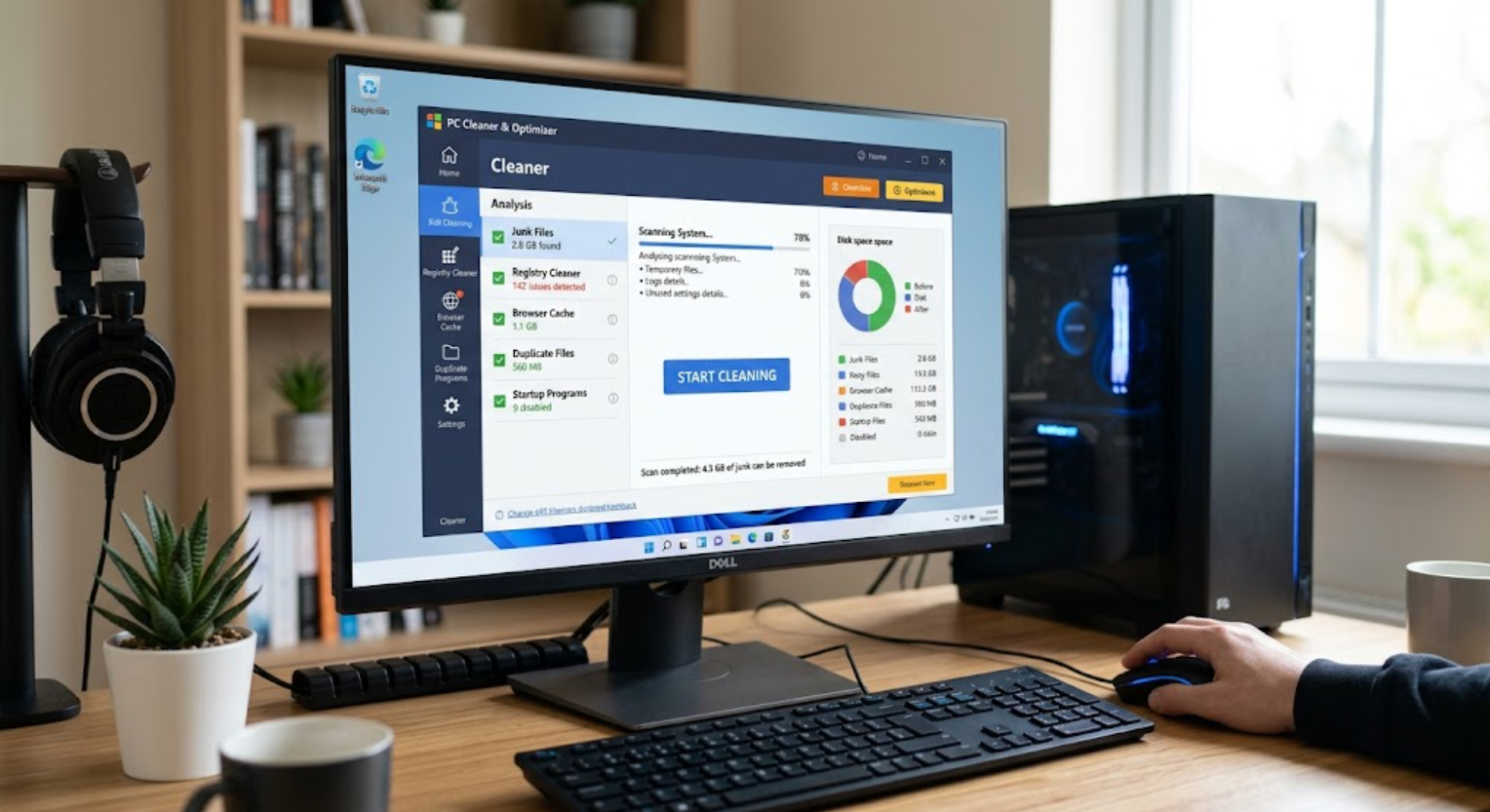
CC Cleaner, officially branded as CCleaner, is a computer optimization and cleaning application developed by Piriform. Its main purpose is to help users identify and remove unwanted files and manage certain areas of their computers. The official CCleaner website says its Windows software can clean browser history, cached images, cookies, temporary data, and other types of digital clutter. It also provides tools for managing startup programs and updating third-party applications.
One of the software’s most accessible features is Health Check, which brings several maintenance functions together in a single interface. Depending on the edition being used, Health Check can analyze areas related to privacy, storage, speed, and software security. The official support documentation explains that Health Check can identify browser tracking data and unnecessary files while, in its more complete version, also helping users manage startup programs and outdated software.
| Feature | Main purpose |
|---|---|
| Health Check | Provides quick PC maintenance recommendations |
| Custom Clean | Removes selected temporary and browser data |
| Software Updater | Helps update supported third-party applications |
| Startup Manager | Controls programs that launch with Windows |
| Apps Uninstaller | Helps remove installed applications |
| Disk Analyzer | Shows how storage is being used |
| Scheduled Cleaning | Automates certain cleaning tasks |
The most important point is that CC Cleaner is a maintenance tool rather than an all-purpose repair program. A slow computer may also be affected by insufficient RAM, aging hardware, malware, Windows problems, excessive background processes, or failing storage. In those situations, cleaning temporary files alone may not produce a dramatic performance improvement.
How CC Cleaner Helps Free Up Storage Space
One of the most practical reasons people use CC Cleaner is to remove unnecessary files that accumulate during everyday computer use. Web browsers, Windows, and installed applications can create temporary files, cached content, cookies, and other data over time. CCleaner’s Custom Clean feature allows users to analyze these areas before deciding what to remove. Its official documentation explains that the analysis screen shows the applications involved, number of files, and amount of storage they occupy, giving users more control over the cleaning process.
This can be especially helpful when a computer is running low on available disk space. CCleaner can target selected operating-system and application data rather than requiring users to search manually through different folders. The company says its cleaning tools can remove temporary files, browser data, and other unnecessary information to help reclaim storage.
Using CC Cleaner to Improve PC Performance
Cleaning unwanted files is only one part of CC Cleaner’s performance toolkit. Modern computers can have numerous applications launching with Windows or continuing to consume system resources in the background. CCleaner’s Health Check can identify unnecessary startup programs, while its Performance Optimizer can place selected background applications into a temporary “Sleep” mode.
The potential benefit depends heavily on the individual computer. A PC overloaded with startup applications may feel more responsive after unnecessary background activity is reduced, while a computer that is already well maintained may see little noticeable difference. CCleaner reports performance improvements from its own testing, including faster startup and reduced resource usage, but these figures are company test results rather than a guarantee for every user’s system.
Practical tip: Before disabling a startup application, make sure you understand what it does. Some background programs are important for hardware, security, synchronization, or other features you regularly use.
CC Cleaner for Browser Privacy and Temporary Files
Another major use of CC Cleaner is managing browser data and temporary internet files. Everyday browsing can leave behind cached images, cookies, browsing history, download records, and other information. CCleaner’s Custom Clean feature allows users to select supported browsers and decide which categories should be removed. Its documentation also explains that users can review analysis results before cleaning, which provides greater control over what is deleted.
This privacy function can be useful on shared computers where users do not want old browsing activity or temporary data remaining on the device. However, users should pay attention to what they select before running a cleaning operation. Removing cookies or saved browser information can sign users out of websites and may delete information they intended to keep. CCleaner also offers Smart Cleaning, which can automatically clean selected junk and browser data or remind users when cleaning may be appropriate.
CC Cleaner Free vs. Professional Features
CC Cleaner Free provides basic cleaning and maintenance functions, making it suitable for users who primarily want to remove unnecessary files and manage routine PC clutter. The official product information indicates that the free edition includes standard cleaning and access to Health Check, while some more advanced functions are reserved for paid editions.
The Professional edition expands the feature set with capabilities such as automatic cleaning, more complete Health Check functionality, Software Updater, and other optimization tools. Current CCleaner information also lists features such as Performance Optimizer and Driver Updater among its paid offerings. The right option therefore depends on how much automation and additional maintenance functionality a user actually needs rather than simply choosing the most expensive version.
| Feature | Free | Professional |
|---|---|---|
| Standard cleaning | Yes | Yes |
| Health Check | Limited | Full |
| Automatic cleaning | Limited | Yes |
| Software updating | Limited | Yes |
| Performance tools | Limited | More extensive |
| Priority support | No | Yes |
Is CC Cleaner Safe to Use?
The question “Is CC Cleaner safe?” is understandable because the software experienced a serious security incident in 2017. A compromised version of CCleaner was distributed through official download infrastructure and contained malware. Major security reporting at the time documented that more than two million users downloaded the affected version. The U.S. National Vulnerability Database also records the malicious behavior associated with CCleaner version 5.33.6162.
That incident is historical and should not automatically be treated as evidence that current CCleaner versions are malicious. CCleaner’s current security guidance recommends obtaining the software from trusted sources, including its official website and Microsoft Store. The company also states that CCleaner is not an antivirus or malware-detection tool, so users should continue using appropriate security software for malware protection.
Best Practices for Using CC Cleaner
Using CC Cleaner carefully is more important than simply running every available cleaning option. Before deleting data, review the categories identified by the program and avoid removing browser information, saved passwords, cookies, or application data that you still need. CCleaner’s analysis interface is specifically designed to show the files and categories selected for cleaning, allowing users to make an informed decision before proceeding.
A sensible maintenance routine is to use the standard cleaning features periodically rather than repeatedly deleting data without a reason. Keep Windows and applications updated, maintain reliable antivirus protection, back up important files, and download CCleaner only from a trusted source. If a computer remains slow after cleaning, investigate other causes such as limited memory, excessive startup applications, outdated hardware, storage problems, or malware rather than assuming that additional cleaning will solve everything.
Quick CC Cleaner checklist
- Download from a trusted source
- Review cleaning results before deletion
- Keep important browser data when necessary
- Avoid changing advanced settings without understanding them
- Keep Windows and applications updated
- Use dedicated security software for malware protection
- Back up important files before major system maintenance
Conclusion
CC Cleaner, officially known as CCleaner, remains a popular utility for routine PC maintenance. Its cleaning tools can help remove temporary data, browser clutter, and other unnecessary files, while features such as Health Check, Startup Manager, Software Updater, and Performance Optimizer provide additional ways to manage a computer.
The key is to use CC Cleaner as a maintenance tool rather than expecting it to solve every performance or security problem. Reviewing what will be deleted, keeping software updated, downloading the application from an official source, and maintaining separate antivirus protection can make PC maintenance safer and more effective.
FAQs
Is CC Cleaner free?
Yes. CCleaner offers a free edition with core cleaning and maintenance features, alongside paid Professional options with additional functionality.
Does CC Cleaner make a PC faster?
It can help in certain situations, particularly by reducing unnecessary startup activity or managing background applications, but results vary depending on the computer.
Is CC Cleaner an antivirus?
No. CCleaner itself states that it is not an antivirus or malware-detection tool.
Where should I download CC Cleaner?
For security, download CCleaner from a trusted source, preferably its official website or an authorized distribution platform such as the Microsoft Store.
